Phone:
(701)814-6992
Physical address:
6296 Donnelly Plaza
Ratkeville, Bahamas.
Phone:
(701)814-6992
Physical address:
6296 Donnelly Plaza
Ratkeville, Bahamas.
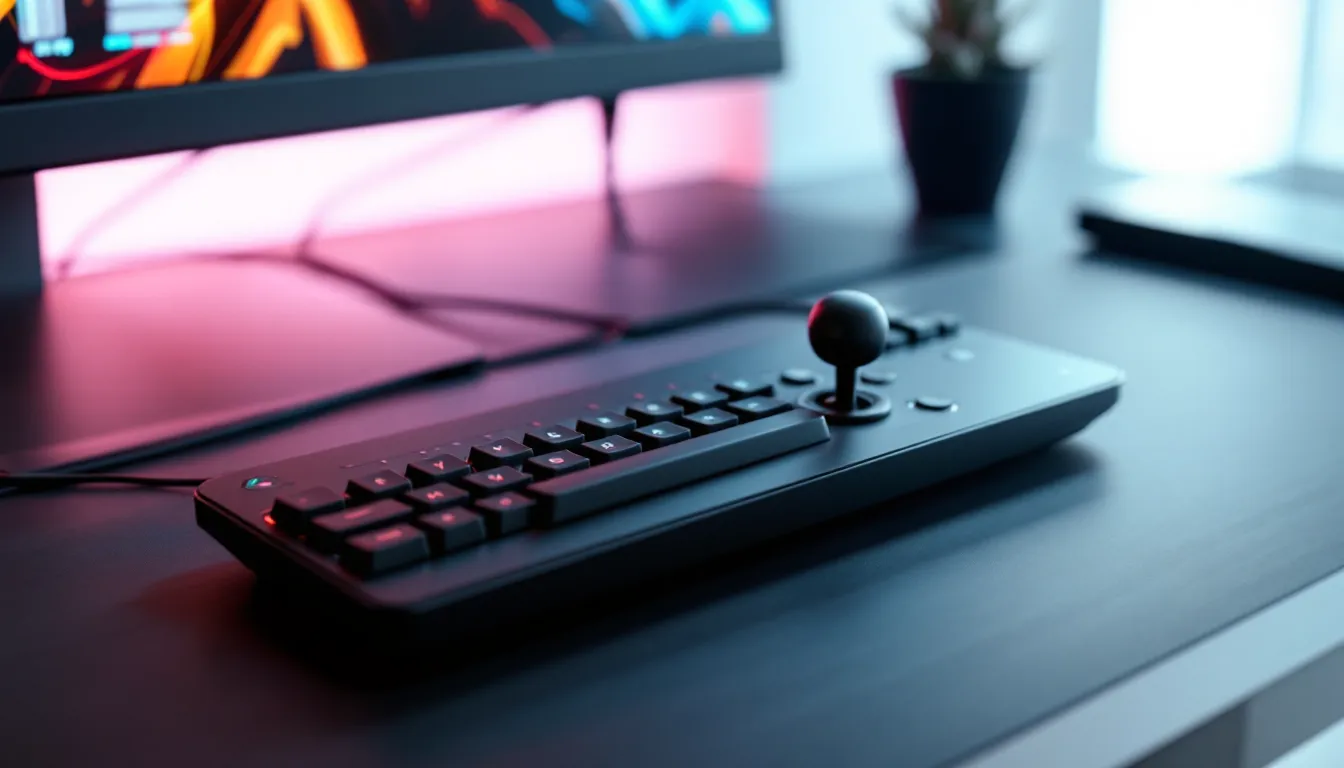
If you’ve ever died in a firefight because your thumb slipped off WASD or fumbled a combo because your hand cramped around a full-sized keyboard, you know the frustration. Gaming keypads with integrated joysticks promise a different approach, half the footprint of a traditional keyboard, analog movement control instead of digital key presses, and ergonomic layouts that keep your hand in one natural position.
These devices have been around in various forms for years, but 2026 marks a turning point. Manufacturers are finally nailing the balance between analog precision, programmable macro support, and build quality that doesn’t feel like a budget peripheral. Whether you’re grinding ranked matches in Apex Legends, managing 40-key rotations in Final Fantasy XIV, or threading through asteroid fields in Star Citizen, the right keypad can genuinely change how you play.
This guide breaks down everything you need to know: what makes these devices tick, which features actually matter, and which models deliver in real-world gaming scenarios. No marketing fluff, just the specs and performance details that help you make an informed call.
A gaming keypad with joystick is a specialized input device that combines mechanical or membrane keys (typically 20-40 of them) with an analog thumbstick, all housed in a compact, left-hand-oriented form factor. Think of it as the left third of a gaming keyboard merged with a gamepad analog stick.
The keypad portion handles actions, abilities, weapon swaps, inventory management, whatever you bind to it. The joystick replaces WASD for movement, giving you 360-degree analog control instead of eight-directional digital input. Most models connect via USB and register as both a keyboard and a game controller to your PC, though some newer ones use proprietary software layers to remap inputs on the fly.
Standard gaming keyboards give you 104+ keys, which sounds great until you realize your left hand only comfortably reaches about 25 of them during gameplay. You’re paying for real estate you don’t use, and your hand travels farther for every keypress.
Gaming keypads strip that down to the essentials. Keys are positioned within a 2-3 inch radius of your resting hand position, reducing finger travel and fatigue. The integrated joystick is the real differentiator, WASD forces binary input (you’re either moving or not), while an analog stick allows variable speed. Tilt it slightly for a slow crouch-walk, max it out for a sprint. Many games, especially third-person titles and flight sims, are built around analog movement but PC players have historically been locked into digital keyboard input.
Another key difference: dedicated macro keys and on-the-fly profile switching. Most gaming keypads let you assign complex macros to single keys and swap entire layouts with a button press. Gaming keyboards offer this too, but keypads make it more accessible since every key is within immediate reach.
The shift isn’t just hype. Gamers are reporting measurable improvements in comfort, desk space, and control precision, especially in genres where analog input has been a controller-exclusive advantage.
Analog movement matters more than most PC players realize. In battle royales like Warzone or PUBG, being able to fine-tune your movement speed while ADS-strafing can keep you in cover longer or make you a harder target. WASD gives you four speeds: stopped, forward, strafe, and diagonal. An analog stick gives you infinite gradations.
For stealth games, the difference is night and day. Splinter Cell, Hitman, or any game with sound-based detection benefits from variable movement speed. Keyboard players are stuck walking or running: keypad users can dial in the exact speed that keeps them undetected.
Flight and space sims are the obvious winners here. Star Citizen, Elite Dangerous, and Microsoft Flight Simulator all handle analog input natively. Pairing a gaming keypad’s joystick with a mouse for aiming gives you near-HOTAS control without the desk footprint or cost.
Keyboard layouts were designed for typing, not gaming. Your hand contorts into an angled position on WASD, your pinky stretches for Ctrl and Shift, and your thumb hovers awkwardly over the spacebar. After a few hours, you feel it.
Gaming keypads are purpose-built for a relaxed hand position. Keys are angled and staggered to match natural finger placement, and the joystick sits under your thumb where it rests naturally. Wrist rests are often integrated or easily attachable, and the compact size lets you keep your forearm at a more neutral angle.
Pro players who’ve made the switch often cite reduced hand fatigue as the biggest benefit. When you’re grinding ranked for 6+ hours, ergonomics aren’t a luxury, they’re performance.
Full-sized gaming keyboards eat up 18 inches of horizontal desk space. Tenkeyless boards trim that to around 14 inches. Gaming keypads? Usually under 8 inches.
If you’re running a dual or triple monitor setup, or if you’ve got limited desk real estate, that space matters. Compact setups also give you more room for low-sensitivity mouse movements, which is critical for FPS players who run 400-800 DPI and need 12+ inches of horizontal mousepad travel for a 180-degree turn.
For LAN events or gaming cafes, keypads are easier to transport than full keyboards. Toss one in a backpack with your mouse and headset, and you’re good to go.
Not all gaming keypads are built equal. Here’s what separates the solid performers from the gimmicky trash.
You want every key to be fully programmable, ideally with onboard memory so profiles persist without software running. Look for devices that support per-key remapping, not just preset layouts.
The best models offer multiple layers, pressing a modifier key switches the entire keypad to a secondary function set. This effectively doubles or triples your available inputs without adding physical keys. Check how many profiles the device supports and whether you can switch between them on the fly or need to alt-tab out to swap.
RGB backlighting isn’t just for looks, per-key lighting helps you visually distinguish different layers or game-specific setups, especially if you’re managing complex MMO rotations.
Joystick quality varies wildly. Cheap models use potentiometer-based sticks with dead zones you could park a truck in. High-end options use Hall effect sensors for near-zero dead zone and better durability (no physical contact means no wear).
Adjustable sensitivity curves are a must. You should be able to set response curves per game, linear for precise flight sim control, aggressive for twitchy FPS movement. Some keypads let you assign different curves to the X and Y axes independently, which is useful if you want faster strafing but slower forward/back movement.
Check the physical stick design too. Concave tops provide better thumb grip than flat ones, and replaceable stick caps let you swap in taller options for finer control or shorter ones for faster flicks. Many gaming peripheral reviews highlight joystick precision as a key differentiator among models.
Mechanical switches are the gold standard. Cherry MX, Kailh, or Gateron switches give you tactile feedback, consistent actuation, and 50+ million keypress lifespans. Red switches (linear, 45g actuation) are popular for gaming, but tactile Browns or clicky Blues work if you prefer feedback.
Membrane switches are fine for budget models but feel mushy and wear out faster. If you’re spending more than $60, you should be getting mechanical.
The housing should be solid plastic or aluminum, not creaky garbage that flexes when you press keys. Check reviews for reports of key wobble or stick drift over time, those are red flags.
The bundled software makes or breaks customization. You want an interface that’s intuitive, not a confusing mess of nested menus.
Key features:
Some manufacturers push always-online software or accounts, avoid those if you can. Onboard memory means the device works even if the software crashes or you’re on a different PC.
These picks are based on current availability, build quality, feature sets, and community feedback across Reddit, Discord, and competitive gaming forums.
Razer Tartarus V3 Pro (2026 Refresh)
The Tartarus V3 Pro nails the balance between key count, joystick precision, and build quality. The optical switches feel snappy, the stick has minimal dead zone, and Synapse 4 is leagues better than the old version. The thumb pad is divisive, some players love having eight extra inputs, others never touch it. Either way, it’s there if you need it.
Best for players who want a do-it-all solution and don’t mind paying for premium features.
Redragon K585 DITI
The K585 punches way above its price point. Build quality is solid, the stick is responsive enough for most games, and 42 keys give you more options than pricier competitors. The software is barebones but functional. Biggest downside: Outemu Blues are loud and clicky, which won’t bother everyone but might annoy teammates in voice chat.
Best for budget-conscious gamers or anyone testing the waters before committing to an expensive model.
Azeron Cyborg Compact
The Cyborg doesn’t look like anything else on this list, it’s a vertical tower your hand wraps around, with keys positioned under each finger. The learning curve is steep, but MMO and MOBA players who adapt swear by it. You can bind entire ability rotations to finger movements without lifting or repositioning your hand.
The analog stick handles movement, freeing up 29 keys for abilities, macros, and modifiers. The modular design lets you adjust everything to fit your hand size. Complex game setup tutorials often recommend spending a few days in non-competitive modes before taking this into ranked.
Best for MMO/MOBA players willing to invest time in the learning curve for maximum efficiency.
GameSir VX AimSwitch (2026 Edition)
The VX AimSwitch prioritizes speed. Low-profile switches reduce travel distance, the stick snaps back fast for quick direction changes, and the entire unit sits low on the desk for minimal wrist angle. The Agile mode is clutch for battle royales, toggle it on for build mode in Fortnite or looting in Apex, toggle off for precise aiming.
Multi-platform support is a bonus if you game on both PC and console. Setup takes a few extra steps per platform, but it works surprisingly well once configured.
Best for FPS and battle royale players who value speed and cross-platform compatibility.
Gaming keypads aren’t universal upgrades. Some genres see massive benefits: others barely notice the difference.
FPS games benefit from analog movement in specific scenarios: crouch-walking in Rainbow Six Siege to minimize sound, fine-tuning strafe speed while peeking in Valorant, or managing movement noise in extraction shooters like Escape from Tarkov.
That said, many high-level FPS players stick with WASD because muscle memory and binary input work fine for fast-paced movement. The real advantage for FPS fans is ergonomics and compact desk space, not the joystick itself.
Tactical shooters with slower pacing (Arma 3, Squad, Ready or Not) see bigger benefits. Analog movement pairs well with the deliberate pacing and sound-based tactics.
MMOs are where gaming keypads shine. Games like Final Fantasy XIV, World of Warcraft, and Guild Wars 2 demand quick access to 20+ abilities, and traditional keyboards force awkward finger stretches or mouse-click combos that slow you down.
A gaming keypad clusters all your most-used abilities within a 2-inch finger radius. Add multiple layers via modifier keys, and you can fit 60+ unique inputs without moving your hand. The joystick handles movement, freeing up fingers that would normally be locked on WASD.
MOBAs like League of Legends or Dota 2 benefit less since they rely heavily on mouse control, but the macro programming and quick-access item keys still add value.
This is the no-brainer category. Flight and space sims are designed for analog input, and most PC players resort to controllers or expensive HOTAS setups to get it.
A gaming keypad gives you analog stick control for pitch/roll/yaw (or thrust vectoring in space sims) while keeping your right hand on the mouse for targeting and camera. Microsoft Flight Simulator, Star Citizen, Elite Dangerous, and No Man’s Sky all feel dramatically better with analog movement compared to keyboard.
You won’t match the precision of a full HOTAS rig, but you’ll get 80% of the way there for a fraction of the cost and desk space. Professional gaming gear comparisons often note that many sim racers and flight sim enthusiasts use gaming keypads as HOTAS alternatives.
Unboxing and plugging in is the easy part. Getting the most out of your keypad takes a bit of tuning.
Most gaming keypads require proprietary software for full functionality. Download the latest version from the manufacturer’s site, don’t rely on the CD that came in the box, it’s probably outdated.
Install the software, then connect the keypad. The OS should recognize it as both a keyboard and game controller. If not, check Device Manager (Windows) or System Preferences > Keyboard/Game Controllers (Mac) to verify detection.
Update the firmware if prompted. Manufacturers often push stability and feature updates in the first few months after release.
Set your default profile in the software. Most devices come with generic layouts that won’t match your games, so you’ll be customizing this immediately.
Start with your most-played game. Open the keypad software and create a new profile named after that game.
Map your most-used actions to the easiest-to-reach keys, the ones directly under your fingers in resting position. Abilities you spam (reload, jump, primary fire) should be on your index and middle fingers. Situational actions (inventory, map, voice chat) can go on the outer ring or secondary layer.
Use modifier keys to create layers. For example, holding a thumb button could shift all your keys to secondary functions, weapon slot 1 becomes grenade, ability 1 becomes ultimate, etc.
Test in a practice range or bot match. Don’t jump straight into ranked with a fresh layout, you will fat-finger abilities and die.
Iterate. Your first layout won’t be optimal. Play a few sessions, note which keys feel awkward, and adjust. Most players go through 3-4 revisions before settling on a final setup.
Joystick calibration is where you’ll spend the most time fine-tuning.
Start with the software’s calibration tool. Move the stick in full circles to map its range. If you notice drift (character moving when the stick is centered), increase the dead zone slightly, 5-10% is usually enough.
Set your sensitivity curve. Linear is best for precise analog control, but aggressive curves give you faster max-speed movement with less stick travel. Test both in your game of choice.
For flight sims, consider separate X/Y sensitivity. Lower Y-axis sensitivity gives you finer pitch control for landing, while higher X-axis lets you roll faster in combat.
Some games don’t natively support mixed input (keyboard + gamepad stick). If your game freaks out when it detects both, use the keypad software to remap the stick to keyboard inputs (WASD emulation). You’ll lose analog precision but gain compatibility.
Save multiple sensitivity profiles if you play different genres. Your Apex Legends settings won’t work for Star Citizen.
Even premium keypads run into issues. Here are the usual suspects and fixes.
Stick drift: Joystick registers movement when centered. Increase the dead zone in software. If that doesn’t fix it and the device is new, RMA it, drift out of the box indicates a defective sensor.
Keys not registering: Check if the key is disabled in software. Some profiles disable specific keys by default. Also verify you’re not hitting your OS’s key repeat rate limit if you’re mashing buttons fast (this usually only affects macro spam).
Software won’t detect the keypad: Try a different USB port, preferably a direct motherboard connection instead of a hub. Disable USB selective suspend in Windows power settings. Reinstall the software with the keypad unplugged, then plug it back in after installation completes.
Game doesn’t recognize analog input: The game might not support simultaneous keyboard and gamepad input. Use the keypad software to remap the stick to WASD key presses. You lose analog precision but gain compatibility.
Profile not auto-switching: Check that the game executable name matches exactly what you entered in the software. Steam games sometimes launch through a launcher executable, not the game itself, you need to specify the actual game .exe file.
Macro delays feel off: Most macro recorders capture real-time delays between keypresses. If you recorded a macro slowly, it’ll play back slowly. Re-record it at game speed or manually adjust delays in the software.
RGB lighting glitching: Lower the brightness or disable reactive lighting effects. Some older USB controllers can’t supply enough power for full RGB at max brightness while also handling input polling. If the issue persists, use a powered USB hub.
There’s no universal right answer. It depends on what and how you play.
Choose a gaming keypad with joystick if:
Stick with a traditional gaming keyboard if:
Some players run both, keypad for primary games, full keyboard off to the side for typing and backup controls. It’s overkill for most, but if you’ve got the desk space and budget, it works.
The real deciding factor is commitment. Gaming keypads deliver benefits, but only if you put in the hours to build muscle memory and fine-tune your setup. If you’re not willing to invest that time, the advantage evaporates and you’re left with an expensive paperweight.
Try before you buy if possible. Some gaming cafes and LAN centers have keypads available for testing, and many retailers accept returns within 30 days if it doesn’t click for you.
Gaming keypads with integrated joysticks aren’t for everyone, but for the right player and the right games, they’re a legitimate upgrade. The analog movement control opens up possibilities that WASD simply can’t match, the ergonomic benefits are real during long sessions, and the desk space savings matter more than you’d think.
2026’s lineup offers solid options across every price point, from the budget-friendly Redragon K585 to the premium Razer Tartarus V3 Pro. If you’re deep into MMOs, flight sims, or any game where analog input adds value, it’s worth testing one out.
Just remember: the device is only as good as the time you invest in setup and muscle memory. Don’t expect to plug it in and instantly dominate ranked. Give it a few weeks of practice, tweak your layouts, and calibrate that joystick until it feels natural. Once it clicks, you probably won’t go back.
