Phone:
(701)814-6992
Physical address:
6296 Donnelly Plaza
Ratkeville, Bahamas.

Phone:
(701)814-6992
Physical address:
6296 Donnelly Plaza
Ratkeville, Bahamas.
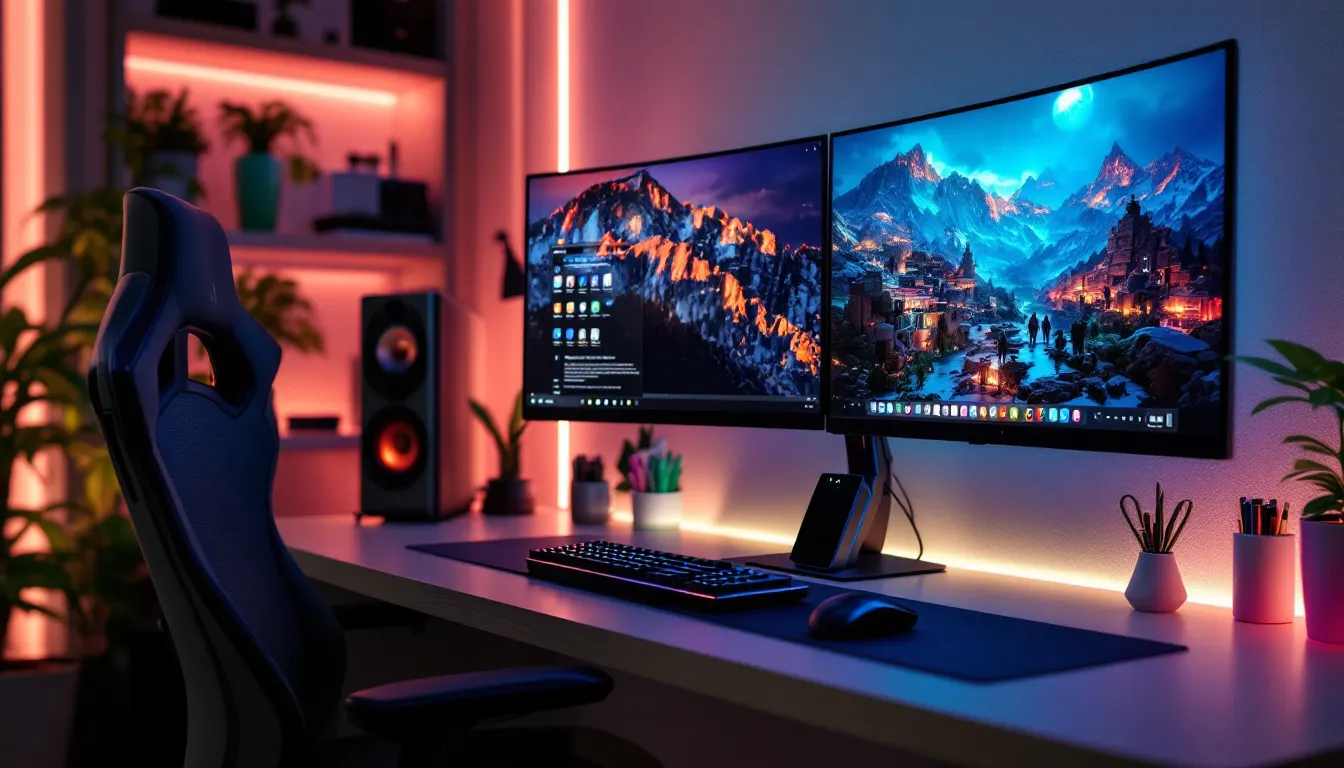
The gaming monitor market has exploded over the past few years, with options spanning from ultrawide behemoths to compact, lightning-fast panels. But if you’re serious about competitive gaming or just want a setup that doesn’t dominate your entire desk, 25 inch gaming monitors deserve a closer look. They’re not as common as the ubiquitous 24 inch or the popular 27 inch models, but that middle ground offers some genuinely compelling advantages, especially if you’re chasing high refresh rates and pixel-perfect clarity without sacrificing desk real estate.
This guide cuts through the marketing noise to help you understand what makes a 25 inch gaming monitor tick, what specs actually matter for your setup, and which models are worth your cash in 2026. Whether you’re grinding ranked matches in Valorant, diving into story-driven RPGs, or streaming your gameplay, the right monitor can be the difference between a good setup and a great one.
Competitive players swear by smaller screens for one simple reason: less head movement. When you’re locked into a match of CS2 or tracking opponents in Apex Legends, your eyes need to scan the entire display in milliseconds. A 25 inch monitor sits right in that zone where you can take in all the action without constantly swiveling your head or losing focus on the center crosshair.
Most esports pros use monitors between 24 and 25 inches, and the extra inch over the standard 24 gives you slightly more screen space without compromising that peripheral advantage. You’re not stretching your vision to catch UI elements in the corners, and crucial information like health bars, ammo counters, and minimap details stay within your natural field of view. That split-second advantage adds up when reaction time determines the outcome of a round.
Another factor: pixel density. At 25 inches with 1080p, you’re looking at roughly 88 PPI (pixels per inch), which keeps images sharp without requiring the GPU horsepower that 1440p demands. If you’re running a mid-tier card or prioritizing frame rates over resolution, a 25 inch 1080p display lets you push higher refresh rates without compromise.
Not everyone has room for a massive battlestation. If you’re working with a standard desk, say, 48 to 60 inches wide, a 25 inch monitor leaves plenty of space for your keyboard, mouse, and maybe a second display or streaming gear. It’s also ideal for those who sit relatively close to their screens, typically 20 to 30 inches away. At that distance, a 25 inch panel fills your vision comfortably without feeling overwhelming.
If you’re gaming in a dorm, apartment, or shared space, the footprint matters. A 25 inch monitor with a slim bezel and compact stand won’t dominate your setup, and it’s easier to transport if you move frequently. Plus, if you ever want to go dual-monitor for productivity or content creation, two 25 inch displays side-by-side fit most desks without requiring an ultra-wide mount or complicated arm setup.
Refresh rate is where things get spicy. A 144Hz panel is the baseline for serious gaming in 2026, it’s smooth enough for most players and strikes a good balance between performance and price. If you’re coming from a 60Hz display, the jump to 144Hz is immediately noticeable: movement feels fluid, tracking is easier, and input feels snappier.
But if you’re deep into competitive shooters or MOBAs, 240Hz is the real sweet spot. The difference between 144Hz and 240Hz is smaller than the leap from 60Hz to 144Hz, but it’s still there, especially if you have the hardware to consistently push 200+ FPS. Games like Valorant, CS2, and Rainbow Six Siege benefit massively from that extra refresh headroom, giving you smoother motion clarity and slightly lower perceived input lag.
Then there’s 360Hz, which is basically overkill for anyone who isn’t playing at a semi-pro level or higher. You need a beastly GPU (think RTX 4080 or better) to even approach 360 FPS in modern titles, and the difference between 240Hz and 360Hz is marginal unless you’re hyper-attuned to motion clarity. For most gamers, 240Hz is the ceiling where cost-to-benefit ratio starts to drop off hard.
Response time measures how quickly a pixel can change from one color to another, usually expressed in milliseconds (ms). For gaming, you want 1ms gray-to-gray (GTG) or close to it. Anything slower and you risk ghosting, those annoying visual trails that appear behind fast-moving objects. Most modern gaming monitors hit 1ms GTG with overdrive settings enabled, though you’ll want to test different overdrive levels to avoid inverse ghosting or overshoot artifacts.
Input lag is different: it’s the delay between your mouse or controller input and the image updating on screen. This is almost never listed in spec sheets because manufacturers don’t want to publish it, but third-party testing from sites like RTINGS can give you the real numbers. For competitive gaming, aim for input lag under 5ms. Most 240Hz and 360Hz monitors designed for esports nail this easily.
This one’s contentious. 1080p (1920×1080) is still the go-to for competitive gaming on a 25 inch screen. The pixel density is fine at this size, you won’t see individual pixels unless you’re inches from the panel, and your GPU can focus entirely on pumping frames. If you’re running something like an RTX 4060 or RX 7600, 1080p lets you hit 240+ FPS in most esports titles without breaking a sweat.
1440p (2560×1440) on a 25 inch monitor is rare, but it exists. The image is noticeably sharper, and if you play a mix of competitive shooters and single-player games, the extra clarity in AAA titles is gorgeous. But there’s a trade-off: you need beefier hardware to maintain high frame rates, and at 25 inches, the sharpness gain over 1080p isn’t as dramatic as it would be on a 27 inch panel. For pure competitive play, 1080p is still king. For versatility, 1440p is worth considering if your rig can handle it.
TN (Twisted Nematic) panels used to dominate the esports scene because they’re fast and cheap. You’ll still find TN panels on budget 144Hz and some older 240Hz models. The pros: incredibly fast response times (often sub-1ms) and low input lag. The cons: awful viewing angles and washed-out colors. If you’re sitting dead-center and only care about performance, TN works. But in 2026, modern IPS panels have mostly caught up in speed, making TN less appealing unless you’re on a tight budget.
IPS (In-Plane Switching) is the current favorite for gaming monitors. IPS panels offer vibrant colors, excellent viewing angles, and response times that now rival TN in many cases, especially with newer tech like Nano IPS or Fast IPS. Most premium 240Hz and 360Hz gaming monitors use IPS because it delivers both performance and image quality. The downside: IPS glow (a slight backlight bleed in dark scenes) and sometimes higher price tags.
VA (Vertical Alignment) panels have the best contrast ratios, making them great for immersive single-player games with dark scenes. But VA suffers from slower response times, especially in dark-to-dark transitions, which can cause smearing in fast motion. You won’t see many 25 inch VA gaming monitors because the size is usually paired with speed-first priorities, and VA just doesn’t compete with IPS or TN for that.
The ASUS ROG Swift PG259QNR continues to be a beast for competitive players in 2026. This 24.5 inch (close enough to 25 inch) IPS panel runs at 360Hz with a 1ms GTG response time and native G-Sync support. It’s built specifically for esports, with minimal input lag and Reflex Latency Analyzer built in if you’re running an NVIDIA GPU.
What sets it apart is the color accuracy, 99% sRGB coverage, so you’re not sacrificing visuals for speed. The stand offers full ergonomic adjustment (height, tilt, swivel, pivot), and the build quality feels premium. It’s overkill if you’re casual, but if you’re grinding ranked or streaming competitive play, this monitor won’t hold you back. Expect to pay around $500-$600, which is steep but justified for the spec sheet.
The AOC 25G3ZM is a solid entry-level option for gamers who want speed without emptying their wallet. It’s a 24.5 inch 240Hz Fast IPS panel with 1ms GTG response time and FreeSync Premium support (also works with G-Sync compatible mode). At around $200-$250, it’s one of the cheapest ways to get into high-refresh gaming.
Don’t expect premium build quality or extensive color gamut coverage, it hits about 95% sRGB, but for competitive FPS or MOBA players on a budget, it delivers where it counts. The stand is basic (tilt only), so you might want a VESA mount if you need height adjustment. But the panel itself performs well above its price point, and TechRadar gave it solid marks in their budget monitor roundup earlier this year.
If you want the best of both worlds, esports-level speed and content-creator color fidelity, the BenQ Zowie XL2546K deserves attention. This 24.5 inch 240Hz TN panel might seem like a step backward in panel tech, but BenQ’s DyAc+ motion blur reduction tech is unmatched for motion clarity. Pro players in CS2 and Valorant swear by it.
Beyond the competitive chops, BenQ includes features like adjustable shields to block ambient light, S-Switch for quick profile changes, and Color Vibrance settings to make enemy models pop without oversaturating the image. It’s around $450-$500, which is a lot for a TN panel in 2026, but the feature set and proven esports pedigree make it a top pick for serious competitors who prioritize motion clarity over color reproduction.
Adaptive sync eliminates screen tearing and stuttering by syncing your monitor’s refresh rate with your GPU’s frame output. If you have an NVIDIA card, G-Sync (or G-Sync Compatible) is the way to go. G-Sync Compatible monitors work with NVIDIA GPUs but don’t require the proprietary module, keeping costs down. Full G-Sync modules add hardware-level variable overdrive and sometimes HDR support, but they’re rare on 25 inch panels.
FreeSync is AMD’s open standard, and it works with AMD GPUs (and many modern NVIDIA cards via G-Sync Compatible mode). Most budget and mid-range 25 inch gaming monitors use FreeSync, and the experience is nearly identical to G-Sync in practice. FreeSync Premium adds low framerate compensation (LFC), which keeps sync active even if you dip below the monitor’s minimum refresh range, useful if your GPU struggles in demanding scenes.
Bottom line: don’t stress too much about which adaptive sync tech you get. Both work well, and most monitors in 2026 support both standards unofficially.
HDR on monitors is… complicated. Most 25 inch gaming monitors claim HDR10 support, but unless you’re hitting DisplayHDR 600 or higher, the effect is minimal. Budget panels with DisplayHDR 400 barely deliver a noticeable HDR experience because they lack the peak brightness (400 nits isn’t enough) and local dimming zones to create true contrast.
If HDR matters to you, say, for single-player games like Cyberpunk 2077 or Elden Ring, look for monitors with at least DisplayHDR 600 and 90%+ DCI-P3 color coverage. But be warned: those features are rare on 25 inch panels and usually push the price into premium territory. For competitive gaming, HDR is a nice-to-have, not a must-have.
Color gamut is more straightforward. 100% sRGB is standard for gaming, and it’s enough for most players. If you do content creation on the side, aim for 90%+ DCI-P3 or Adobe RGB coverage, though you’ll pay extra for it.
A good stand makes a huge difference in long gaming sessions. Look for monitors with height, tilt, swivel, and pivot adjustments. Being able to raise your monitor to eye level reduces neck strain, and swivel is handy if you share your screen with friends or adjust your setup frequently.
Cheap monitors often come with tilt-only stands, which is frustrating. If that’s the case, budget an extra $30-$50 for a VESA monitor arm. Most 25 inch gaming monitors support the VESA 100x100mm mounting standard, making them compatible with almost any aftermarket arm or mount.
Build quality varies wildly. Premium models from ASUS, BenQ, and LG use metal stands and sturdy plastic bezels that don’t flex or wobble. Budget models from lesser-known brands can feel flimsy, with wobbly stands and creaky housings. If you’re spending $300+, you should expect solid construction. Testing from outlets like Tom’s Hardware often highlights build quality issues, so check reviews before buying.
The 27 inch vs 25 inch debate usually comes down to resolution and use case. A 27 inch monitor is better suited for 1440p because pixel density at 1080p on 27 inches looks noticeably softer, around 81 PPI compared to 88 PPI on a 25 inch 1080p panel. If you play a mix of competitive and AAA single-player games, and you have a GPU that can handle 1440p at high refresh rates (think RTX 4070 or better), 27 inches gives you more screen space and better visual fidelity.
But for pure competitive gaming, 25 inches is superior. The smaller size keeps your entire screen within easy view, reducing the need for eye or head movement. Esports players almost universally prefer 24-25 inch panels for this reason. Plus, 25 inch monitors are often cheaper at the same specs because they’re less popular, so you can snag a 240Hz panel for less than a comparable 27 inch model.
If desk space is tight or you sit close to your screen (under 24 inches away), 25 inches is the smarter pick. If you want immersion and play a variety of genres, 27 inches makes more sense.
The difference between 24 inch and 25 inch monitors is minimal, literally one inch diagonally. In practice, the screen area increase is about 8%, which you probably won’t notice unless you put them side by side. Most “25 inch” gaming monitors are actually 24.5 inches, so the gap shrinks even further.
So why choose one over the other? It usually comes down to availability and price. The 24 inch size (specifically 24.5 inch models) dominates the esports monitor market, so you’ll find more options, especially at high refresh rates like 240Hz and 360Hz. If you see a 25 inch model with the specs you want at a good price, grab it, but don’t stress if you can only find a 24 inch alternative. The difference in gaming experience is negligible.
One minor advantage of true 25 inch panels: slightly better pixel density at 1080p compared to 24 inch, which can make text and UI elements just a hair sharper. But we’re talking marginal gains here.
Out-of-the-box settings are rarely optimal. Start by selecting the right picture mode for your game type. Most gaming monitors include presets like FPS, RTS, Racing, and Cinema. For competitive shooters, the FPS mode usually boosts mid-tones and reduces shadows, making enemies easier to spot in dark corners. RTS modes often increase sharpness and contrast to help with minimap readability.
Adjust brightness to around 250-300 nits for general gaming. If you’re in a bright room, push it higher: if you game in the dark, dial it back to reduce eye strain. Contrast should stay near 50-60% on most IPS panels, cranking it to 100% often crushes blacks and blows out highlights.
For color settings, start with Color Temperature set to 6500K (often labeled as “Warm” or “Standard”). It’s closer to true white than the overly blue “Cool” presets. If your monitor has Black Equalizer or Shadow Boost, use it sparingly in competitive games, it helps reveal enemies hiding in shadows, but too much flattens the image and looks washed out.
Once your monitor is dialed in, tweak your GPU settings to match. In NVIDIA Control Panel, make sure your monitor is set to its native refresh rate under “Change resolution.” Then enable G-Sync (if supported) under “Set up G-Sync.” Set Low Latency Mode to “On” or “Ultra” for competitive games, it reduces input lag by limiting frame queuing.
For AMD users, open Radeon Software and enable FreeSync under the Display settings. Turn on Radeon Anti-Lag to reduce input latency, and consider enabling Radeon Boost if you need extra frames in demanding titles, it dynamically lowers resolution during fast motion to maintain high FPS, though the visual quality drop is noticeable.
In-game, disable V-Sync if you’re using adaptive sync (G-Sync or FreeSync), they do the same job, and running both can introduce stuttering. Set your frame rate cap to just below your monitor’s max refresh (e.g., 237 FPS on a 240Hz monitor) to keep adaptive sync active and reduce GPU power spikes.
One of the biggest mistakes is buying based on refresh rate alone. A 360Hz monitor sounds incredible, but if your GPU can’t push 300+ FPS in the games you actually play, you’re wasting money. Match your monitor to your hardware and game library. A 240Hz panel is more than enough for most players, and the savings can go toward a better GPU or peripherals.
Another trap: ignoring panel type. TN panels are cheap and fast, but the color quality is rough, and viewing angles are terrible. Unless you’re buying purely for esports and sitting perfectly centered, opt for an IPS panel in 2026, they’ve closed the response time gap and offer vastly better image quality.
Don’t overlook stand quality and ergonomics. A wobbly stand or lack of height adjustment will annoy you daily. Check reviews for build quality complaints before buying. If the stand is garbage, factor in the cost of a VESA arm.
Skipping adaptive sync is another error. FreeSync and G-Sync eliminate tearing and stuttering, and they’re standard on nearly every gaming monitor now. There’s no reason to buy a panel without it unless you’re grabbing an old clearance model.
Finally, don’t assume bigger specs always mean better. A 1440p panel on a 25 inch monitor offers sharper images but demands more from your GPU. If you play competitive shooters and want consistent 240+ FPS, 1080p is the smarter choice. Know what you’re optimizing for, frames or fidelity, and buy accordingly.
25 inch gaming monitors occupy a unique niche in 2026, they’re not as ubiquitous as 24 or 27 inch panels, but they offer a compelling blend of competitive performance, manageable desk footprint, and cost efficiency. Whether you’re chasing high refresh rates for ranked play or just want a sharp, responsive display that doesn’t overwhelm your setup, a well-chosen 25 inch monitor delivers.
Focus on the specs that matter for your games: refresh rate, response time, and panel type. Don’t get hung up on features you won’t use, and match your monitor to your GPU’s capabilities. The right 25 inch gaming monitor won’t just improve your KD ratio or make your games look better, it’ll become the centerpiece of a setup you’re genuinely excited to use every day.
